First sequence
Build a multichannel sequence, load leads without sending anything, then launch it behind a preview and a spend cap.
A sequence is one journey per lead, mixing email, LinkedIn, WhatsApp, rep call tasks, and CRM tasks. Building it and enrolling leads spends nothing and sends nothing; only starting it dispatches.
Attach a sender first
Sidebar → Sequencer → Accounts (/sequencer/accounts). Tabs: Senders, LinkedIn, Email, WhatsApp.
- Email tab → Add inboxes
- LinkedIn tab → Connect LinkedIn: the account becomes a sender on its own, named and pictured from its LinkedIn profile (or it joins the sender with the same name who has no LinkedIn account yet)
- Senders tab → New sender — one person's inboxes plus their LinkedIn and WhatsApp accounts as one sending identity.
oxygen senders list --json and oxygen mailboxes list --json show what is connected. oxygen senders connect --country DE mints a shareable hosted-auth link, valid 10 minutes; --country is the account owner's normal LinkedIn login country, not your target market.
Build it in the app
Sidebar → Sequencer (/sequencer) → New sequence opens /sequencer/sequences/<id>: an empty draft with five stages — Leads → Senders → Sequence → Sending settings → Launch. The Next: … button at the bottom moves through them.
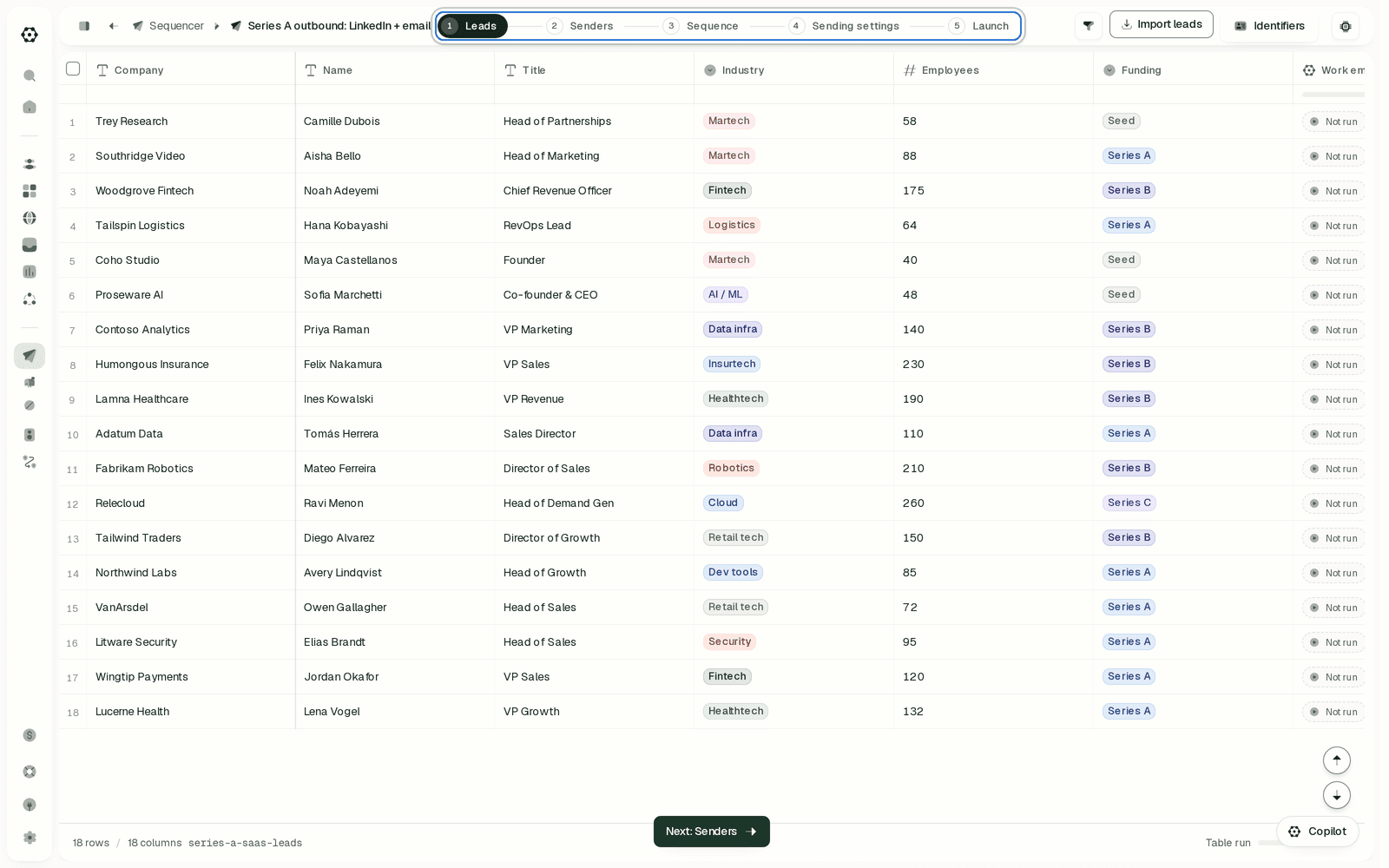
Leads. Import leads offers Upload a file (CSV, JSON, JSONL, or XLSX), Copy from a table, or HubSpot list. Imported rows are deduped and enrolled automatically — there is no separate enroll button. On the toast N leads imported but not enrolled — no LinkedIn URL, open Identifiers beside the import button, map the LinkedIn column, and re-import.
Senders. Add senders chooses who this sequence sends from.
With several senders, OXYGEN gives each lead one of those people: its LinkedIn steps come from that person's account and its emails from one of their inboxes, even while that account or inbox is at a limit or needs reconnection. To send one step from someone specific, open the step in Sequence → Advanced → From. On a Send email step you pick a person, whose inboxes then share that email across your leads (each lead keeps the same one), or one exact inbox; a change of From starts a new email thread, so give that step a subject. On a LinkedIn connection or message step, the person you pick sends every lead's connection request and messages (LinkedIn allows one of your accounts per conversation), while email still comes from each lead's own person. A profile visit, follow, like or comment can each come from anyone. The launch review lists the sender of every step.
Sequence. The canvas opens on Sequence start. Click Add step between steps (on a branch, under that arm's delay) and pick from the catalogue: Send email, Send invite, Send message, Send InMail, WhatsApp message, Call task, Create CRM task, Wait, Wait for signal, Branch on signal or data. Copy fields interpolate {{column}} from the lead's row; use {{column|fallback}} where a value may be missing. {{sender_first_name}}, {{sender_last_name}} and {{sender_full_name}} fill in the person who sends that step, on every channel, with no table column; email steps also take {{sender_email}}. The {{ }} button beside a copy field inserts any of them.
Sending settings. One Sending schedule (timezone, days, From/To) applies to every channel in the journey; turn on Advanced sending schedule to give LinkedIn Invites and Messages and InMail their own days, hours and timezone. Sending limits caps sends per day across every sender (blank for no limit, reset at UTC midnight; profile views and other reads don't count). Unsubscribe adds an opt-out and one-click headers to first-touch emails: a short link in HTML, your footer line in plain text. Reply handling can pause the replier's whole company in this campaign. Details: Sending schedule and Unsubscribe option.
Launch. A review of your leads before anything sends: pick a lead to see every step as that lead will get it, with the sender of each step. Before the first launch you can Edit a lead's Variables or Remove lead from the campaign. Sequence → Preview shows the same review while you write.
From the CLI, oxygen sequences contacts-remove q3-founders --table-row-ids <ids> previews removing leads from this campaign only, and --approved applies it. The removal is permanent for this campaign; the source rows and their history stay. A lead's variables are its source-table row, so you correct them by editing that row, in the table or with oxygen tables rows edit --table <table> --row <row-id> --values-json '{…}'.
Build it from the CLI
oxygen sequences create --name "Q3 founders" --slug q3-founders \
  --steps-file ./steps.json --table <table-id> --json
steps.json holds { "steps": [...] }, each step with its own id:
{
  "steps": [
    { "id": "s1", "channel": "email", "kind": "email_send",
      "subject_template": "{{company}} + inbound",
      "body_template": "Hi {{first_name|there}} — quick question." },
    { "id": "s2", "kind": "wait", "days": 3 },
    { "id": "s3", "channel": "email", "kind": "email_send",
      "body_template": "Bumping this once, {{first_name}}." }
  ]
}
s3 has no subject_template, so it continues the lead's previous email: it goes out as Re: <s1's subject> inside that thread, like a reply. Give a step its own subject_template to start a new email instead. The first email step always needs one.
To send one email from a person, set sender_profile_id on that email_send step to a selected sender profile's ID: each lead gets one of that person's inboxes and keeps it for every step naming them. For one exact inbox, set sender_mailbox_id to that inbox's ID instead (never both), and give the step a subject_template. For a LinkedIn step, set sender_profile_id to a selected sender profile's ID; on invite, message, inmail and withdraw_invite it must be the same on all of them (or absent). Select people with --sender-profiles <profile-ids> when creating or updating the sequence. oxygen sequences start <sequence> previews sender_journey before anything sends: every email and LinkedIn step with its sender, and for default steps the people a lead can be assigned. Contacts shows the lead's Sender and the Last email From separately; sequence analytics groups actual sends and attributed replies by inbox and step.
Enrolling is inert — no provider call, no credits, no message:
oxygen sequences enroll q3-founders --from-table --json--from-table takes up to 500 not-yet-enrolled rows per run; re-run while from_table.has_more is true. For leads outside the bound table, pass --leads-file with { "leads": [{ "row_values": { "email": "…" }, "lead_name": "…" }] }. Attach senders with oxygen sequences update q3-founders --senders <ids>.
Set when it sends and add an unsubscribe option:
oxygen sequences update q3-founders --schedule-timezone Europe/Berlin --schedule-days mon-fri \
  --schedule-hours-start 09:00 --schedule-hours-end 17:00 --include-unsubscribe --json
The schedule applies to every channel unless you give LinkedIn its own windows: --linkedin-invite-schedule and --linkedin-message-schedule each take a JSON window (timezone, days, start, end) that replaces the general schedule for invites, or for messages and InMail; null restores it. LinkedIn sends also stay within each LinkedIn account's working hours and are spread across them: an account's 20 daily invites go out 30–45 minutes apart, starting at a different time each day. A newly connected account starts lower and ramps up over about two weeks, unless it was marked Established account when it was connected; change the ramp with oxygen senders limits set <id> --warmup-preset fast (conservative, standard or fast) or end it with --warmup-disable. Daily send caps also run at half on Saturday and Sunday unless you pass --weekend-full-volume. --include-unsubscribe adds a visible opt-out to first-touch emails (HTML a linked Unsubscribe; plain text your --reply-to-stop-text line, else a default one, never the URL) and one-click headers that mail apps show as an Unsubscribe button. On MCP, use sending_schedule, linkedin_invite_schedule, linkedin_message_schedule and include_unsubscribe on oxygen_sequences_update.
Set the do-not-contact list before launching
Sidebar → Sequencer → Do not contact (/sequencer/do-not-contact). Add entries takes pasted people, emails, phones, or company identities; Sync HubSpot pulls in a saved list. Enrollment always enforces this list.
oxygen suppressions add --lead <linkedin-provider-id> --reason manual
oxygen suppressions import --file ./dnc.txt --reason manual
oxygen suppressions addresses --json
import takes a mixed file of emails, bare domains, and LinkedIn URLs, up to 5000 entries. --reason is required when the file contains any domain — a domain block silences everyone at that company.
Rules also add people automatically — after a hard bounce, an unsubscribe click or opt-out wording, a LinkedIn or WhatsApp reply, or a call marked do-not-call or wrong number. Rules for reply statuses such as not interested exist too, and start off. The Rules card on the same page shows them all. From the CLI, oxygen suppressions policy show --json lists every rule, and oxygen suppressions policy set --rule linkedin_reply --effect stop_only ends only the current campaign for a LinkedIn replier instead of adding them to the list; each rule takes off, stop_only or suppress.
Launch
No flags means preview only: it activates nothing and sends nothing.
oxygen sequences start q3-founders --jsonRead launch_readiness.blockers, sender_journey, copy_preview (rendered LinkedIn/WhatsApp samples per lead), and the estimated credits. Email copy is not rendered in this check: oxygen sequences render q3-founders --json renders every email subject and body (and every A/B variant) for your leads, and sequences get shows the saved templates and unsubscribe settings. Read both before approval.
--dry-run activates the sequence in simulated mode: every step advances, with no provider call, CRM write, or credit. A later --approved start restarts those leads from the first step so they are contacted for real, except a lead whose source row was deleted, a person another live campaign contacts under exclude_contacted, and older duplicates of a person.
oxygen sequences start q3-founders --dry-run --jsonThis command sends real messages to real people.
oxygen sequences start q3-founders --approved --max-live-sends 200 --json--max-live-sends is a positive-integer ceiling on real external actions, required for any sequence with email, WhatsApp, or CRM-task steps — those cost 0 OXYGEN credits, so --max-credits cannot bound them. Omitting it fails with sequence_send_cap_required. --max-credits is an optional credit ceiling, off unless you pass it. Sends cost 0 credits (pricing reference), so it only bounds paid steps, such as own-key Instantly call fees.
In the app the same gate is Review & start on the Launch stage: a dialog listing pending enrollments, estimated credits, rendered copy samples, and any blockers. For email, WhatsApp, or CRM-task steps it also asks for a Send limit — the campaign pauses after that many live sends and CRM writes, like --max-live-sends. Start live confirms, and stays disabled while a blocker is listed.
It is hidden until the draft has at least one step and — for LinkedIn or WhatsApp — at least one sender; the CLI reports these as sequence_no_steps and sequence_no_senders.
Watch it, pause it, or retire it
A reply stops that lead's enrollment automatically, on every channel — nothing to configure. To pause the replier's colleagues too, create the sequence with --company-reply-pause default (freemail domains are never company-matched); oxygen sequences paused-companies lists what is paused and oxygen sequences resume-company resumes it. To pause a company yourself — say, after a meeting is booked — run oxygen sequences pause-company --domain acme.com.
| What you want | Where |
|---|---|
| Funnel: enrolled, sent, replied, reply rate | oxygen sequences stats q3-founders --json, or Analytics → Outreach (/analytics/outreach) |
| Every send, failure, deferral, open, click, reply, bounce | oxygen sequences events q3-founders --limit 50 --json |
| Per-lead state and the last error | oxygen sequences enrollments q3-founders --json |
| The replies themselves | Unibox (/unibox) |
oxygen sequences pause q3-founders stops new dispatches without deleting the campaign; oxygen sequences resume q3-founders restarts them, and enrollments pick up where they left off. In the app: Pause while active, Resume live while paused.
To retire the Sequence permanently, preview the exact blast radius first, then approve that same deletion:
oxygen sequences delete q3-founders --json
oxygen sequences delete q3-founders --approved --json
The current CLI does not create new archived Sequences. Legacy archived rows remain readable and taggable, but new retirement uses pause for a reversible stop or the preview-first delete flow above for permanent removal.